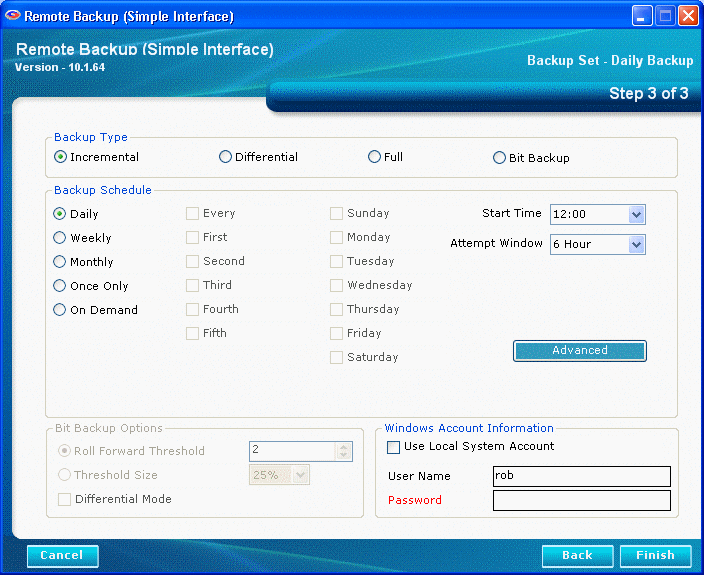
The Advanced Schedule Settings button is found on the Schedule Screen.

Enter the Administrator's password.
The Version Control System keeps multiple copies of your files on the Server. It NEVER over-writes a file. If a you want to restore a file from two weeks ago, you can, back to a specific date - as long as you still have that data on the Server.
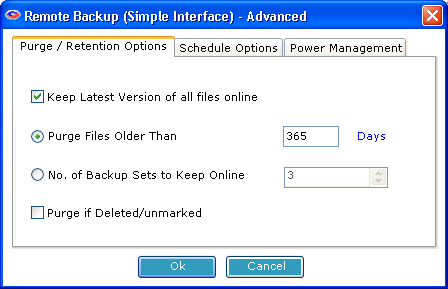 You can set your software to rotate files. It can erase the oldest backup files by the length of time they have been on the Server. So, if you like, you can set the system to delete all files that are 30 days old (as an example). This would mean that the software would automatically erase data as it hit 31 days old and the latest session is written to the disk, effectively keeping the most current 30 days of data online. (or 14 days, or 60 days - whatever) Or, you can turn this feature off and keep all data.
The powerful Restore features can rebuild (in real-time at the time of restore) a full file set containing all the latest versions of files from multiple backup sets for Full, Incremental, Differential, and BitBackup backups.
You can also have the software set to keep files of which it has only one copy, regardless of how old it is. So, files of which you only have one backup copy are never erased.
Check this setting if you want to keep the most recent version of a file regardless the other settings on this screen. For example, assume you have set Purge Files older than: to 30 days. If you only have a single copy of a file within that time frame, and you do not checkmark this option, that file will be erased when its age is over 30 days. If you checkmark this option, that file will be retained regardless of its age until a more recent one appears at your RBS Server.
Use this setting to set the retention period of the files in this Backup Set to a number of days. In this example, files will be retained for 30 days and then erased from the RBS Server.
This setting is mutually exclusive of the Purge Files older than setting. You can only use one or the other, not both. Setting Purge Files older than to zero turns this setting on. Using this setting, the file retention period is not determined by date, but by the number of backups sets on the RBS Server.
Select this checkbox to automatically delete files from the Server at the end of their retention period if they are deleted from the Client or if they are deselected (unmarked) by the Client.
The Schedule Options tab contains the following settings.
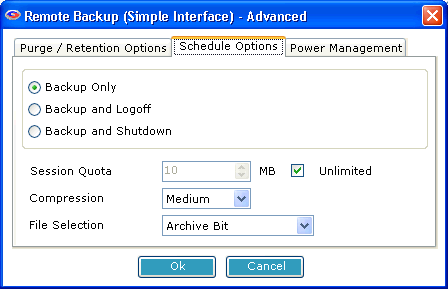 Backup Only
Do nothing after a backup.
Log off the current user after the backup.
Log off the current user and shut down the computer after the backup.
The number of megabytes that can be sent to the Server in one session.
The degree of compression to use.
This sets the way RBackup selects files for backup. If set to Archive Bit, RBackup will select files that have changed since the last backup, according to the archive setting for the file. This is a very fast way to select files. However, if another program resets the archive bit before the backup, the file might not be selected for backup.
Setting File Selection to Modified Date/Time has two advantages and one disadvantage: It can select files for backup regardless of the archive bit, so it's generally more reliable; and it will always do a first full backup, then automatically switch to Incremental Mode (a very handy feature). Its disadvantage is that during a backup session the file selection process is slower than using the archive bit - sometimes quite a bit slower. This might not matter, however, if backups are done at night when nobody is using the computer.
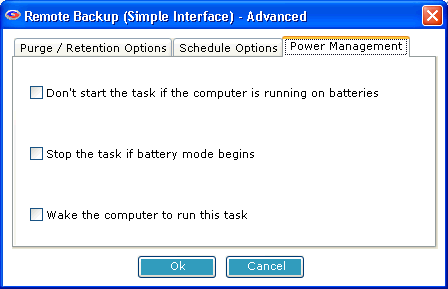 The Power Management Tab contains options that can help extend the battery life of laptop computers.