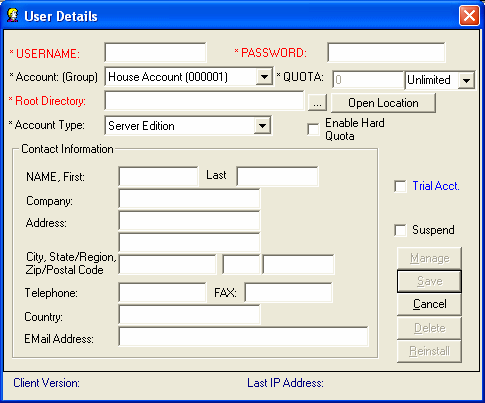
This is where you add users (Clients) manually to your Remote Backup Service. To get to this screen, push the NEW button on the RSB Server Manager's main screen.
The login name of this user. This field is case-sensitive and cannot be changed after it is entered for the first time. Do not use spaces, slash characters, or punctuation marks.
This is the word or phrase used to authenticate this user when the Client software connects with the server. It is case-sensitive. Note that this is NOT the user's Encryption Key. This is the password that this user will use to access his account on your Server. See "Selecting Your Password" for guidelines on picking a proper password.
The Account Group (or Reseller Account) that this user is assigned to. If you don't use resellers, assign all users to House Account (000001)
The maximum disk space this user is allowed to use for storing his data on the RBS Server. Quota is expressed in compressed file size. This is the actual storage space used by each user. After the quota is reached the user will show up on the Quota Report, and will continue to be allowed to do backups. The Email Notification PlugIn can optionally report the total storage space used and the percentage of quota used by each client.
This is the root directory for this client's data. The RBS Server creates and maintains directories for each user. The root directory for each user is automatically given a name identical to the USERNAME above. In normal use, accept the default entry, which will be entered automatically for you.
Clicking this button will open the Root Directory.
Select this checkbox if you want this client to be unable to back up after he reaches his quota. Normally backups can continue, and an "over quota" email is generated.
Select the edition of the Client software to associate with this new user.
Check this box if this user is a Trial Account. Trial accounts operate the same as regular accounts, except that they are automatically suspended after the number of days you can specify.
Specify the number of days for this Trial Account.
This user's name, address, and other information
When this checkbox is selected the user will not be able to log in.
Pick this button to Remotely Manage this client. You can change some features of the Client even after it has been deployed, without visiting the client site. For more information, see the section on Remote Client Management.
Pick this button to save this Client's information.
Pick this button to cancel without saving.
Pick this button to delete this user. You will be asked if you want to also delete all his data.