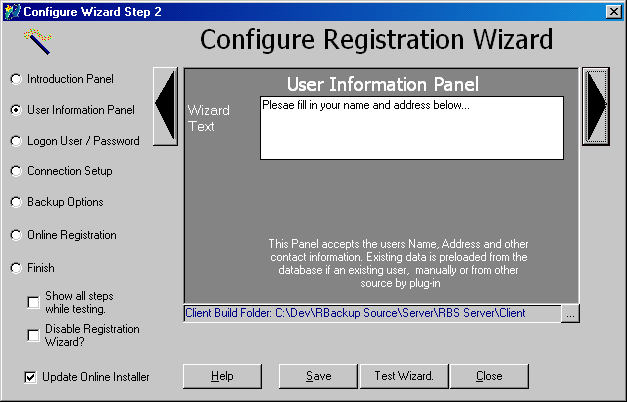
The next panel defines the text shown above the user name, address and other fields.
When running the registration wizard in Test Mode, the fields are pre-filled with the word "TEST" and both client and server do not save changes into permanent settings. The labels (Name, Company, Address 1 ) on this screen are all customizable.
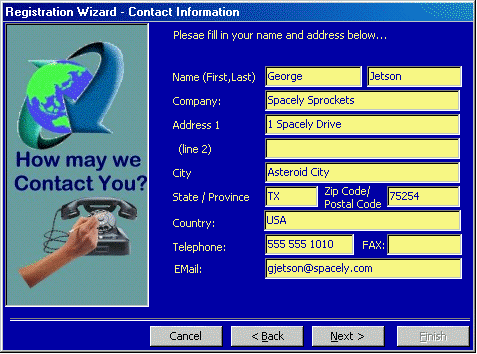
The program remembers your clients' entries here for convenience. If for some reason your client is unable to connect, the next time he attempts these fields will remain filled in. The temporary filename changes by date, so the information may not reappear if retried on a second or subsequent day.
To edit/change the label captions, use Windows Notepad to edit the file rblabel.ini in your \RBS Server\Client\ folder and the Online Installer folder on your server if you own the Online Installer PlugIn. If the rblabel.ini file does not exist, create it with Notepad.
Below is the text in the rblabel.ini:
[Labels]
0=Name(First,Last):
1=Company:
2=Address:
3=(line 2)
4=City:
5=State / Province:
6=Zip / Postal Code:
7=Telephone:
8=FAX:
9=EMail:
10=Country:
To edit the labels you need to change the corresponding text in this file. For example, if you want to replace "Country:" with "University/College:", then edit the rblable.ini file like this:
[Labels]
0=Name(First,Last):
1=Company:
2=Address:
3=(line 2)
4=City:
5=State / Province:
6=Zip / Postal Code:
7=Telephone:
8=FAX:
9=EMail:
10=University/College: