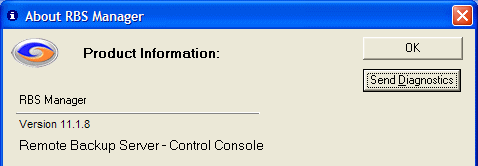
Both the Server and the Client software have a button you can select to send diagnostic information to RBS Tech Support. This information usually includes everything we need to diagnose a problem and help you fix it. The diagnostic packet includes the latest few logs, the registry settings, general program settings, environmental settings, and other information. This is NOT personally identifiable information for the end users.
The diagnostic packet is sent as an email through a private SMTP server in RBS' data center on port 9090. If port 9090 is blocked the diagnostic packet will not be sent.
ONLY PRESS THE SEND DIAGNOSTICS BUTTON IF INSTRUCTED TO DO SO BY AN RBS TECHNICIAN. DO NOT PRESS THE BUTTON, OR INSTRUCT YOUR CUSTOMERS TO PRESS THE BUTTON, UNLESS YOU HAVE FILED A SUPPORT CASE AND HAVE A SUPPORT TICKET NUMBER.
On the RBS Server Manager, the Send Diagnostics button is on the Help / About menu.
On the RBS Client software (Simple Interface) you will find the Send Diagnostics selection on the Log menu. This is not documented in the Client help files.
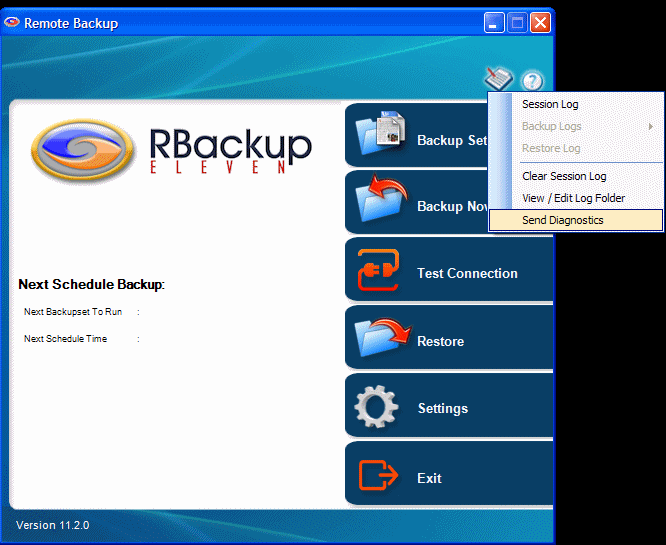
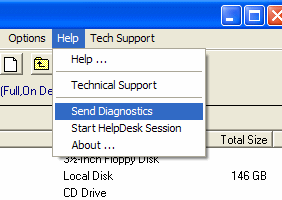
On the RBS Client Software Advanced Interface the Send Diagnostics selection is on the Help menu.
To prevent end users from unnecessarily flooding our Tech Support with diagnostic info we have password protected the Send Diagnostics feature on the Client software. After selecting Send Diagnostics, users will be presented with the following screen:
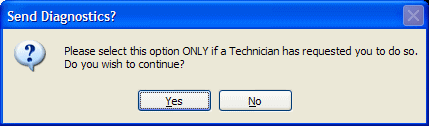
After the user selects the Yes button, the following screen appears:
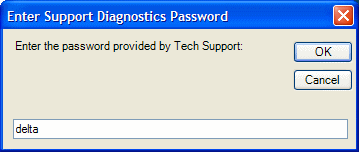
To lessen the chances of end users flooding our Tech Support with unnecessary diagnostic info, end users must enter a password. There are two passwords. Either will work. Case is not sensitive. Please do not distribute these passwords to your end users until they need help. Users should enter one of the following passwords:
delta
charlie
After the correct password has been entered, the following screen appears:
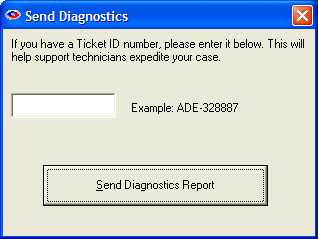
This screen requests the Support Ticket Number for which you are sending this Diagnostic Report. While it is not necessary to enter a Ticket Number here, doing so will help improve your response time from RBS Tech Support by automatically importing the Diagnostic Report into your Helpdesk Ticket.