During the installation you will be presented with a screen where you can activate your software. If you don't have a serial number, please check your email or your printed invoice. You should have received your serial number both ways. Check your Junk mailbox, too.
Remote Backup Systems has produced a series of tutorial movies that will greatly simplify your installations, especially your first one. We strongly suggest that you view these movies before installing your Server software.
Tutorial Movies can be found at this link: http://remote-backup.com/multimedia.htm
The RBS Server installs automatically. Just follow the on-screen prompts.
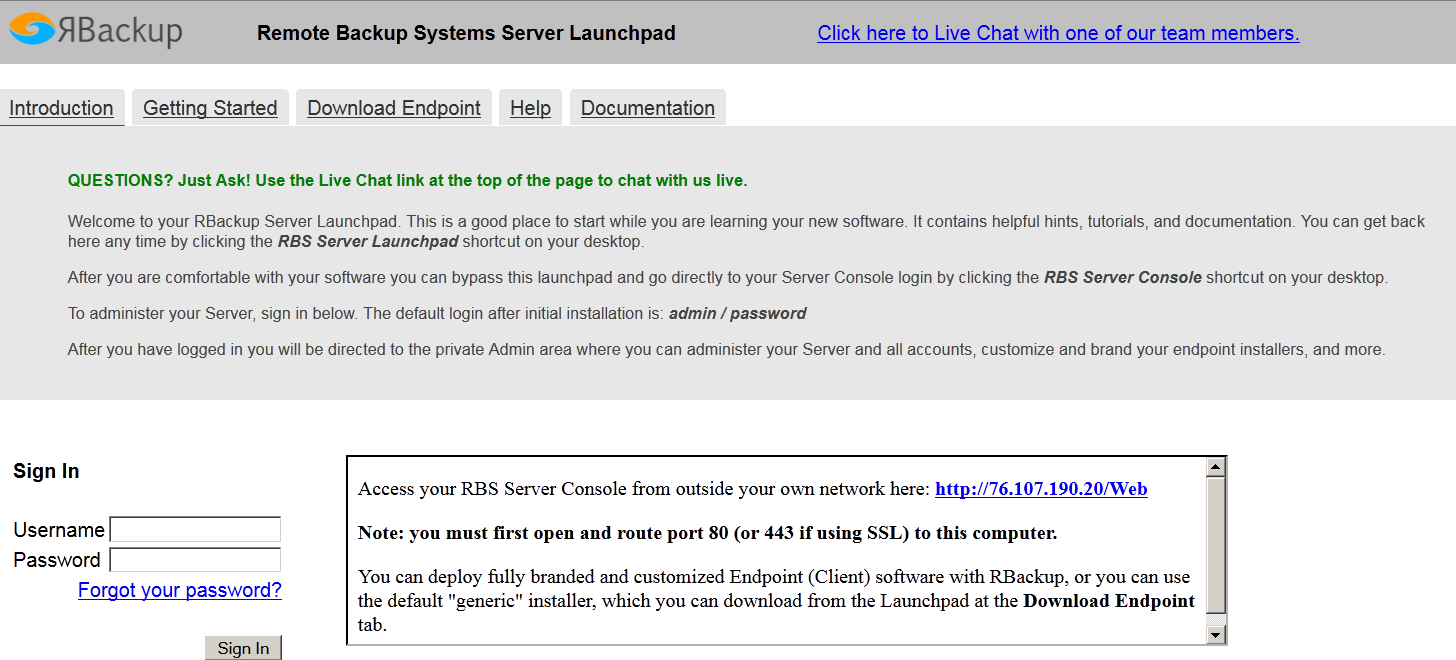
After installation you will see the RBS Server Launchpad. It contains all of the startup information you need. Please read it carefully and follow instructions.
NOTE: The RBS Manager is a console application that contains many, but not all, of the functions of the Web Console. We strongly suggest you use the Web Console to manager your RBS Server and Endpoints.
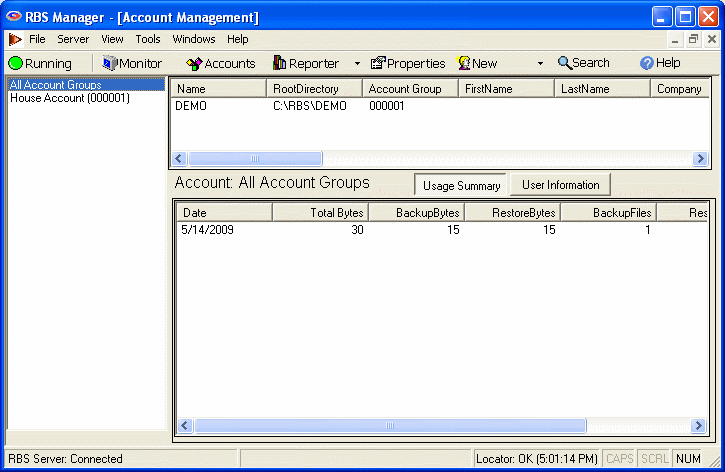
The RBS Server Manager starts with the Monitor mode. This mode lets you see activity on your Server as clients log in for backups.
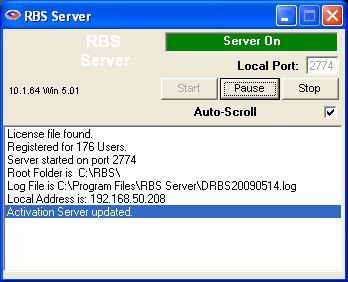
The RBS Server itself runs separately from the RBS Server Manager in its own window. You can choose to hide it if you like. The RBS Server is operated through the RBS Server Manager interface. This window is only there to let you know the RBS Server is running.
If you haven't already done so, install your RBS Servernow, then come back here.
The Evaluation Version can install both the Server and a preconfigured Client on the same computer to make it easy to test the software on a single computer. In addition, you can install the Client software on up to 49 other computers for testing on the Internet and your local area network.
The following two operations are NOT required to run a functional RBS Server. They provide extra functionality only if you want it.
Install and configure your PlugIns.PlugInsare programs that add functionality or enhance the performance of RBackup. They are sold and installed separately from our foundation products.
Customize the Client.This is where you will make the Client software call only your Server, and you can optionally re-brand the Client software with your own name and graphics, change features, and set defaults. There are many other re-branding and customization features. Learn more about how to customize your Client software in the chapter called Customize Client Installer.
There are three ways to install the Client software. One is directly from this CD - not the recommended method because it requires a manual installation. Another is to burn your own CDs so that they install automatically. The third is to use the Online Installation PlugIn, sold separately. You can include the on-line installer on your web site.
Any way you decide to install the Client you will need to prepare it first.