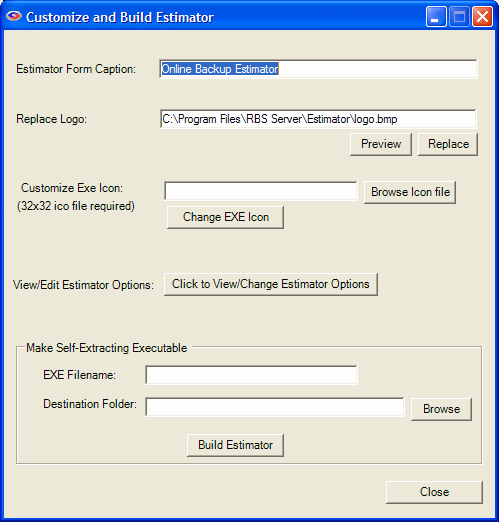
(The Customize Estimator button on the Customize Client Installer screens is available in some versions of RBackup.)
You can post the Estimator on your web site for your users to download. It will estimate the size of a full backup and subsequent daily backups and the time required to send them to an Online Backup Server, based on the current upload speed of the Internet connection.
It scans the file system using the Best Practices for Include and Exclude settings as defined in Rob Cosgrove's Online Backup Guide for Service Providers.
After the scan is complete you can view the files selected by clicking one of the View Files buttons. Use the Online Backup Estimator to fine tune your Include/Exclude settings.
Compression - Most Online Backup software compresses data before sending it to the Server, increasing the effective throughput and apparent upload speed. Some file types can compress more than others. The Estimator knows the average compression ratios of many common file types and applies these to its calculations using the proprietary lossless compression algorythm built into RBackup and Mercury.
Speed Test - The Estimator tests the upload speed of the Internet connection. Upload speeds can vary greatly from hour to hour and moment to moment, depending on many factors. Your actual backup times can vary as well.
IMPORTANT NOTES: The Online Backup Estimator only estimates backup sizes and times. Results will vary. Results do not account for sub-file backup methods like RBackup's BitBackup. It can take a long time for the Estimator to run depending on drive size, number of files, computer speed, and options selected.
Default Settings
The Online Backup Estimator uses the following default settings. These settings are supported by Remote Backup Systems' RBackup and Mercury Online Backup Software Platforms, but may not be supported by other online backup software. You can change most of these defaults using the Edit Options button.
Scanning: The Estimator scans all local hard drives. It ignores network drives, USB drives, CD drives, Diskette drives, and Memory sticks. Change this in the Scan Options section.
File Size: Set a maximum file size in the Other Options section. By default, this setting is zero, which scans all files regardless of size except those Excluded.
Included Files: The scan will be limited to the file types selected. Change this in the File Selections section. By default the Included Files list is blank, which scans all files except those Excluded.
Included Folders: The scan will be limited to the folders selected. Change this in the Folder Selections section. By default the Included Folders list is blank, which scans all folders except those Excluded.
Included Virtual Folders: The scan will be limited to the Virtual Folders selected. If no Virtual Folders are selected, the entire drive is scanned. Change these selections in Scan Options. By default no Virtual Folders are selected, which scans all folders except those Excluded.
Excluded Files: Files that match these masks will be ignored. Change these in File Selections
Excluded Folders: Folders that match these masks will be ignored.
Excluded Virtual Folders: Some Virtual Folders will be excluded from the scan and ignored. Select these folders in the Scan Options section.
Read Only Files: Files set to Read Only are NOT scanned. Change this in Other Options.
Hidden Files: Files set to Hidden are NOT scanned. Change this in Other Options.
Scan Period: The Scan Period in the Other Options section is a date range used by the Estimator to find files that have been recently added or updated. The Estimator uses these file sizes as a benchmark to estimate the amount of data changed on a regular basis in determining the size of daily Backups. The default range is the past three days. If the past three days do not represent a period of average use for this computer, you can change the date range.
The Estimator can be customized through the Customize Estimator button.
Enter the text to display on the top of the Estimator Screens.
The Logo is a graphic that displays at the top of the Estimator's main page. It must be a file in .BMP format, with a size of 466 pixels wide and 124 pixels high, and a resolution of 72 pixels per inch. A color depth of 8 bits is best. Use this graphic to display your company logo and name, or phone number.
The default graphic shipped with the product is of the correct size and attributes. You can edit it using any graphics editor capable of editing .BMP files.
The EXE Icon is the icon that shows up in Windows Explorer and other places in Windows. To replace the default icon, your replacement must be 32x32 pixels, in .ICO format. Shallow color depths look best.
You can change the Default Settings (see above, Default Settings) by clicking the "Click to View/Change Estimator Options" button.
To post your customized and branded Estimator on your web site you must package it as a self-extracting executable file. These options help you do that.
Enter the name of your executable file. For example, "BackupEstimator". It is not necessary to enter ".EXE". File names must be Windows-legal and should contain no blank spaces or special characters like punctuation.
Select the folder for your executable file. The file will be written to this location.
Your estimator will be built when you select the "Build Estimator" button.
Most Online Backup Services post the Estimator on their web site for customers to download and run. Use an FTP client to upload the executable file to your web server. You can also copy it to CDs or to a USB memory stick.